
Produce live
Build livestreams and recordings as a coordinated crew—camera operators, directors, mixers, OBS operators, and supervisors working as one team.

Life moves fast. Learn to capture the moments you will want to remember—from family adventures to the biggest moments at FIS—through photography, film, and live production.
Media Club brings students together behind the camera and inside the control room. We learn by doing: planning coverage, making creative decisions, and delivering work for real school events.
Build livestreams and recordings as a coordinated crew—camera operators, directors, mixers, OBS operators, and supervisors working as one team.
Learn how framing, light, timing, sound, and movement turn an ordinary photo or video into something worth keeping.
Direct, edit, mix sound, create graphics, and interview people. The finished story depends on thoughtful choices before, during, and after filming.
You can start with one role, watch how the whole crew works, and gradually take on more responsibility as your confidence grows.
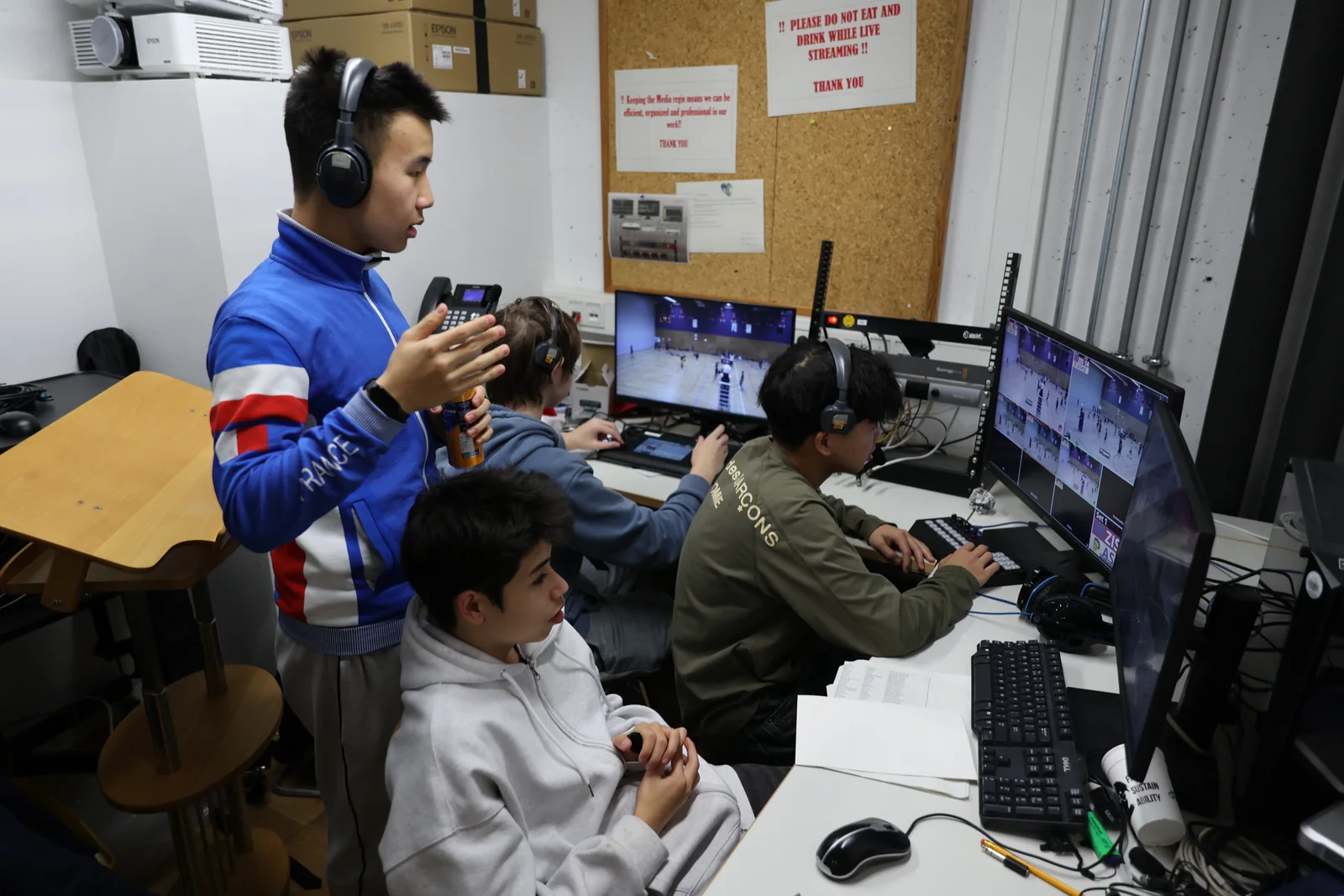
In the control room, students monitor camera feeds, choose shots, manage graphics and sound, and communicate with the crew. It is fast, collaborative, and one of the best ways to understand how live media works.
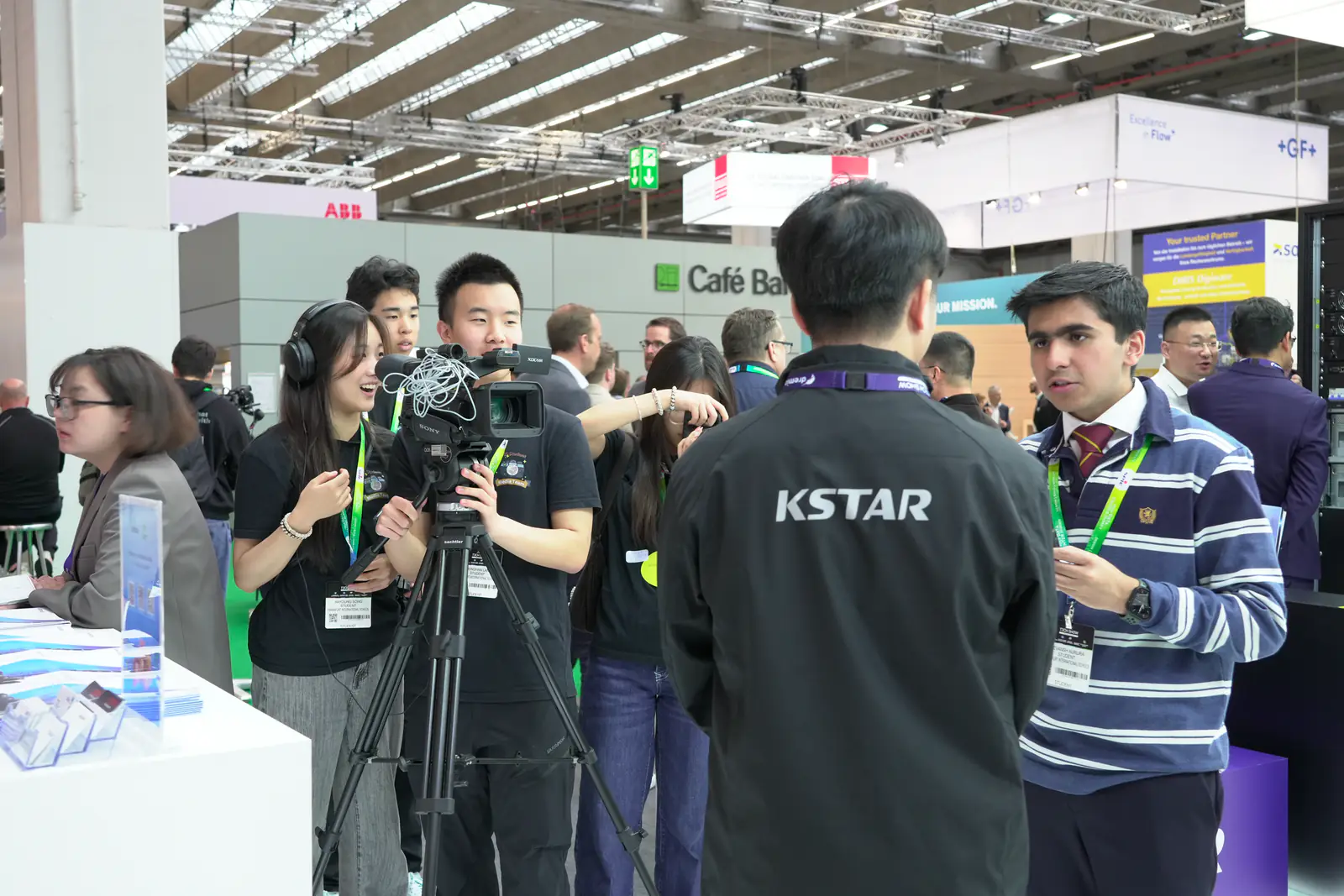
Camera work is more than pointing at the action. You will practise composition, focus, movement, anticipation, and communication—skills that also make your everyday photos and videos better.
Explore the Media Role GuideYou do not need your own camera or a finished portfolio. Begin with guided practice, learn the equipment safely, and try different jobs until you find the role that feels right.
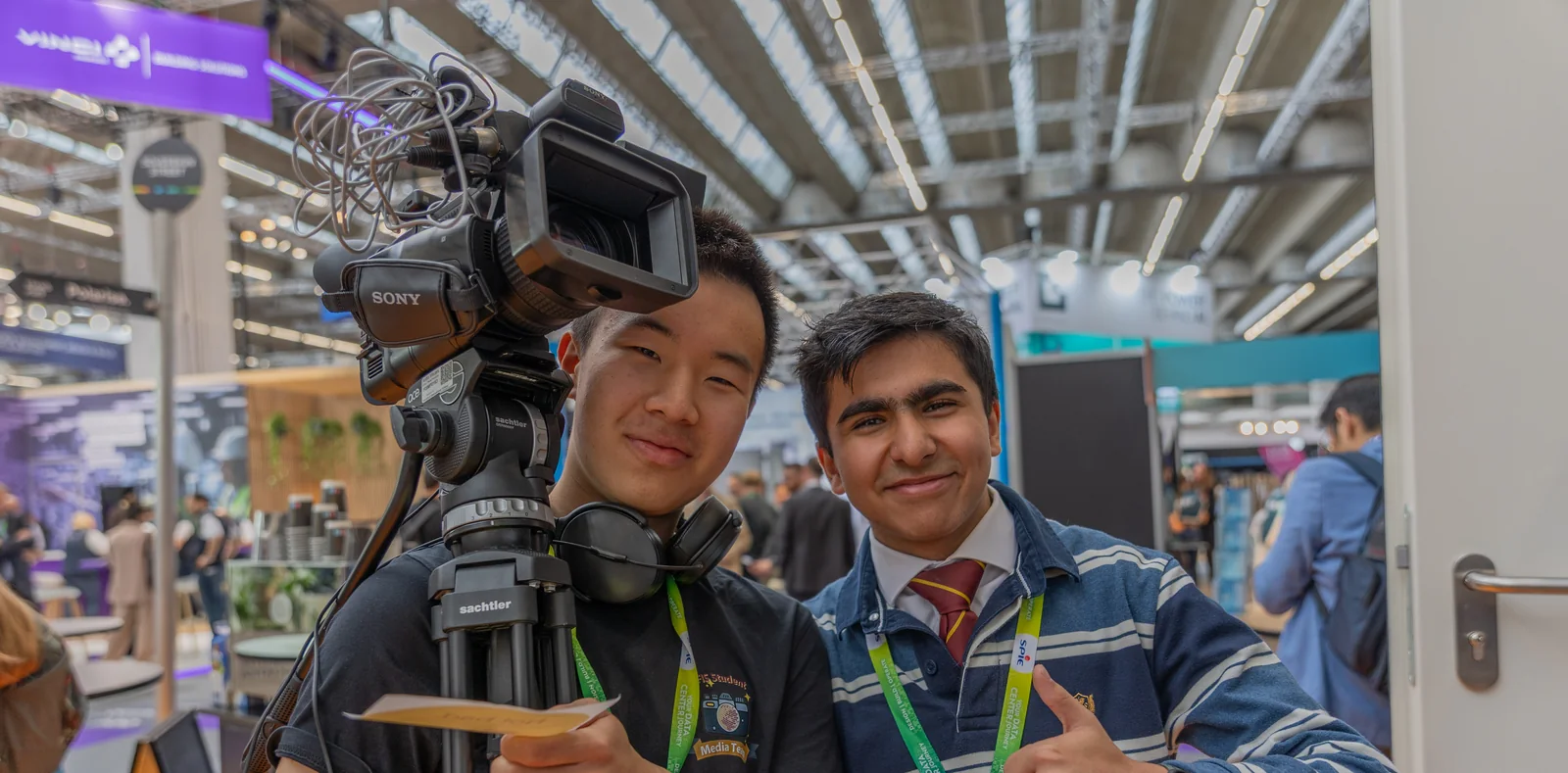

Dedicated members can earn opportunities to represent FIS at events and support important school productions. A small, trusted crew is selected to help livestream major moments such as the Graduation ceremony.

Media Club is the first FIS service club to operate through its own fully personalised Crew Center. Each member gets a workspace shaped by their role, while events, signups, meetings, equipment, schedules, and finished projects stay connected in one place.
The latest projects below come directly from the Crew Center gallery, so this page grows with the club.
Media Club welcomes FIS students in Grades 6–12. Training is shared through guided sessions and real event experience.
Look through our work, equipment, and role guide to see what interests you.
Complete the short application using your GDPR-safe FIS alias email.
A faculty member reviews your application and helps you begin training with the club.
No. Beginners are welcome, and you can learn through guided practice before taking responsibility at an event.
Media Club is open to FIS students in Grades 6–12.
It depends on the role and event. You can begin with training and choose opportunities that fit your schedule; major productions require more preparation and commitment.
Yes. Exploring camera, control-room, editing, audio, and presenting roles is encouraged before you decide where to specialise.
Apply through the Crew Center and take your first step into photography, filmmaking, and live production.
Your shifts, your council, and what's coming up next.
See upcoming SAC service events, including events linked to Media Club livestreams.
Open SAC Events →Choose a Scoreboard shift from clear 30-minute intervals, with two spots in each.
Open sign-up sheets →See your confirmed Scoreboard bookings and return to an event sheet if plans change.
View my shifts →Find current SAC members and leadership in a focused directory.
Open members →See upcoming SAC meetings and their details.
Open meetings →Record whole-event attendance for SAC events and meetings.
Open attendance →For current SAC members only. Verify their membership before approval; approval adds the SAC tag, while deletion permanently removes the request without emailing the applicant.
Plan SAC service at games and school athletics events. Scoreboard shifts have separate sign-up sheets.
Choose a time that works for you. Scoreboard shifts have two spots by default; adjacent shifts are allowed.
Your booked shifts appear here as soon as they are saved. No separate confirmation is needed.
Current SAC-tagged members and their council titles. Grade eligibility alone does not add someone to this directory.
Council meetings have a separate schedule from Media Club. Attendance is recorded for the whole meeting.
Record one attendance mark per person for an entire SAC event or meeting.
Your production roles, meeting RSVPs, and equipment loans, together in one place.
Loading your bookings…
Add once in Apple Calendar, Google Calendar or Outlook. Your app checks for changes automatically.
Only events you join, using your booked crew time. Maybe sign-ups appear as tentative.
Copy your private link above, then paste it in Google Calendar.
If Google opens your calendar home, choose Other calendars → + → From URL. Set it up on a computer first; it will then appear in the mobile app.
Your existing calendar keeps syncing. Replace the link only if you need to add it again.
Every Media Club event and its full event time, whether or not you sign up. No crew roster.
Copy your private link above, then paste it in Google Calendar.
If Google opens your calendar home, choose Other calendars → + → From URL. Set it up on a computer first; it will then appear in the mobile app.
Your existing calendar keeps syncing. Replace the link only if you need to add it again.
Keep your links private. Adding a feed shares its event details with your chosen calendar provider.
Google Calendar: Choose Set up Google Calendar above to copy your link and follow the steps. On a computer, paste the HTTPS subscription URL into Other calendars → + → From URL in Google Calendar settings ↗. Add it in the web version first; it will then be available in your Google Calendar mobile app.
Outlook: Add calendar → Subscribe from web. Apple Calendar: Open Calendar app above, or add a new calendar subscription with the copied URL.
Anyone with the link can read that feed. Keep it private. Adding it to a calendar service shares event details and, for the personal feed, your booked times and crew role with that service. Revoke a link here to stop future access; remove the calendar in your app to clear saved entries.
Updates appear when your calendar app refreshes; this can take several hours. Feeds include the last 180 days and the next two years, excluding archived events. Meetings and equipment loans remain in the calendar download below. Calendar subscriptions do not create sign-ups.
To avoid seeing the same event twice, enable one feed at a time in your calendar app. Your booked time may differ from the full event time.
Calendar files are a snapshot, with no automatic sync. If details change, update or remove the entry in your calendar too. Meeting RSVPs stay separate from attendance. All times below use Berlin time.
See who is covering each period. Maybe holds still need confirmation.
Every great production is a team effort. Explore the responsibilities, expectations, and equipment behind each role before choosing your place on the crew.
A reliable stream depends on preparation, clear communication, safe equipment handling, and respect for everyone taking part in the event.
Arrive, check in, and prepare every system.
Stay aware, communicate clearly, and protect the coverage.
Close down correctly and leave the space ready.
This role is for the adults present to support the production. They know what they are doing, so do not change or claim this role.
Student leaders or experienced members who can run the stream with less adult help. An adult's explicit permission is required. Student Supervisors cannot also cover Photography because they must remain in the stream area.
The mixer chooses which camera feed goes live and calls “camera — prep/live” over the headsets. They relay a shot caller's direction, or make the calls themselves when there is no shot caller.
OBS controls the production computer. For sports streams this includes instant replays and the scoreboard overlay. The operator also monitors the stream or recording uplink and sound.
Operates a remotely controlled camera using a monitor, joystick, and zoom rocker. Robocam carries the same responsibility as a handheld operator: follow the mixer's direction and film the action.
The backbone of many streams. Handheld operators film the action from outside positions, take direction through a headset, and send their pictures to the Regie. The usual cameras are Sony PXW-X70s.
Shares the handheld operator's responsibilities but can move freely while sending video wirelessly to the Regie. Usually uses a Panasonic Lumix GH6 on a gimbal and is reserved for experienced members.
Photographers independently decide which parts of the action to capture. They may use a Media Club loan camera or the personal camera selected in their signup. Club camera reservations include a compatible lens and the complete kit must be returned after the event. Personal equipment is optional and is brought and used at the owner’s own risk, so keep it supervised and protected. Typical club cameras include the Canon 70/450/600/700D, with R6 and GH6 bodies reserved for experienced users or special occasions with adult approval.
Your profile picture and theme are shared with Crew Center. Contact your SAC President, Vice President, or an Auth Admin to update membership or council roles.
Choose an image, drag to reposition it, and adjust the crop.
Choose a theme to apply it instantly, or let Crew Center follow your device.
Choose your SAC style. Each works with light, dark, or device theme.
Save the personal kit you bring to productions. Your Photographer signups can use it automatically.
Choose and order the information shown on your dashboard. These preferences follow your account across devices.
Include your first name in the SAC dashboard greeting.
Show upcoming athletic events and council meetings. Your next shift stays visible.
Choose the pages you use most. Your selection follows your account across devices.
Choose your in-app alerts and opt in to operational email updates.
Learn the whole Crew Center or replay a guide for one page.
 Media Club
A little clearer. A little smoother.
October 2026 updateOne game or event date counts once. Present or Late at the event or its previous-day setup earns the linked event day; doing both still counts once. Setup records keep the actual setup date. A member's result appears as soon as participation is recorded, or when the event finishes. Absent, Excused, Not taken, and unverified signups do not earn the day. Archived events keep their attendance history; deleted events do not.
Mention students using first name + last initial.
Publishing sends one in-app notification to members of the selected clubs.
Available for every event category, including Livestream. Existing signups stay attached if a role is later closed.
Set the number of photographers, even when other crew roles are open.
Set how many members may hold this role at the same time.
Mention students using first name + last initial.
Use first name + last initial when mentioning students in agendas or minutes.
Student names are stored and shown as first name + last initial, for example Max K.
No equipment notes added.
Upcoming club commitments, together. Open an item to see its details.